First impressions on Github copilot with PowerShell
VS code on steroids


Github copilot is a new AI tool that helps you code faster and better, I recently started a trial to test it out with PowerShell. In this post I’ll share my experience.
One of the features of Copilot is that it uses open files you may have open to generate better suggestions, it analyses the context and intent of the code, and then suggests relevant code snippets matching the style and logic of your open files. It also uses the current code you’re working as more context.
Using comments to generate code with Copilot
When you write a comment in your script and press enter you will get one or more suggestions in grey underneath. for example:

It helps to breakdown what you want to do with comments for each task instead of trying to generate one big function.
Keep it simple and then elaborate if you need to add extra parts into your function. To accept the suggestion you simply press the tab key.
If you hover over the suggestions you get a small menu and you can look through different options.
Getting a suggestion as you type
When you start typing Copilot will suggest code snippets, it can suggest whole functions and comments. The suggestion will appear in light grey like in the example below.

When you hover over the suggestion you can see more than one suggestion. You can cycle through using the arrows. Then press Tab or the Accept button.

Completions panel
Another option is to press ctrl + Enter after you have typed something and you’ll get a few suggestions on a panel on the right of the script view.
Copilot chat
Inline chat
This feature is a bit like the copilot which uses Bing chat you might be used to. If you type / at the beginning of the chat you get a list of commands you can use. For example /explain, this would give a detailed explanation of the line of code that you’re on.
This came in handy when I was dealing with this string: "5/31/2020 9:54:40 PM". I use the UK culture therefore the format is different. I wanted to use an expression to create a custom property with the this expression:
@{Name = "Date"; Expression = {$_.RunDate -as [datetime]}}I used that in the select-object command seen below:
$json | Select-Object -Property Errors,Warnings,
    @{Name = "Date"; Expression = {$_.RunDate -as [datetime]}},
    @{Name = "ItemCount"; Expression = {$_.'Items processed'}}
I would get a blank value as [datetime] was not expecting the US format. I brought up the chat feature by pressing Ctrl + I. and I wrote what I needed. You can see in the image below that it gives you a suggestion next to the line of code.

So the suggested line was like this:
@{Name="RunDate"; Expression={[DateTime]::ParseExact($_.rundate, "M/d/yyyy h:mm:ss tt", $null)} }The complete command was:
$json | Select-Object -Property errors,Warnings,
    @{Name="RunDate"; Expression={[DateTime]::ParseExact($_.rundate, "M/d/yyyy h:mm:ss tt", $null)} },
    @{Name="itemsprocessed"; Expression={$_.'items processed'}}
I guess I could have read through the .NET documentation or search on the web for a solution but I was able to fix this very quickly within VS Code with Copilot.
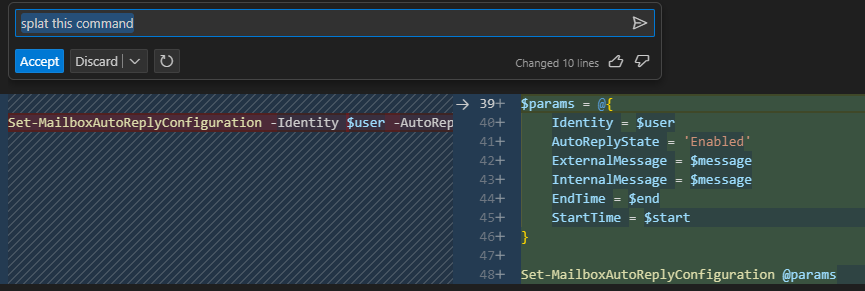
Another thing I used it for is to splat a command, like in the example below, previously I used to use this Automatically convert a PowerShell command to use splatting.
Quick Chat
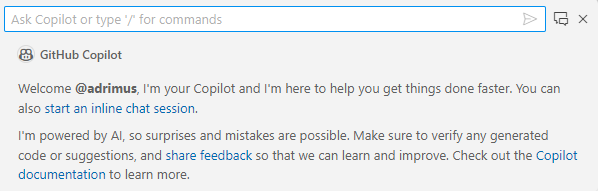
You can also bring up a quick chat which appears at the top of the page by going to View → command Palette (or Ctrl + Shift + P) and then typing in chat: open quick chat.

You would then see the chat window like in the example below:
Other resources
Get Started with GitHub Copilot
In closing
Using Github Copilot definitely makes you quicker, it saved me from having to search through documentation and doing google searches, I’m not sure if that’s a good thing or not. It was handy to come up with boilerplater code which I could then improve.
For me it was like having someone else I could ask for suggestions and get instant feedback. I know that there is a great PowerShell community online but sometimes it’s nice to have a mentor or someone else you can consult. I come from a small country called Gibraltar and I haven’t come across anyone that has the same passion for PowerShell as I do or knows enough to give me advice.
I suppose you need to know some basics about PowerShell and/or programming because the quality of the suggestions when using comments depends on a how you word what you intend to do. It’s always a good idea to check the suggestions and find out why it works. Sometimes the suggestions didn’t work and I wasn’t sure how to write the right prompt to get what I needed.
It seems like AI is the changing the way we work, will it make us better or lazier? Maybe both. We can use it to eliminate boring tasks, we can chat with it and learn new skills. What do you think of Github Copilot or AI in general? Let me know what you think in the comments below.